Quick answer
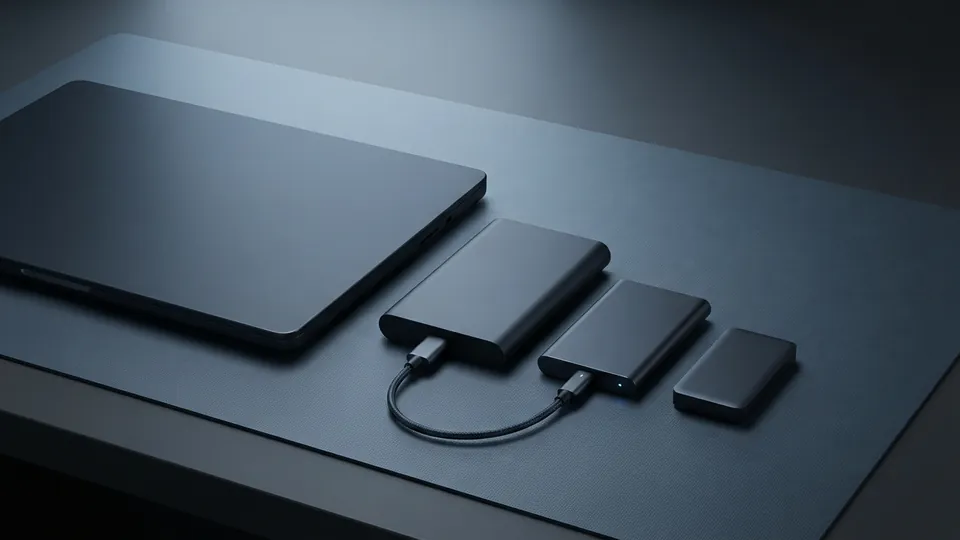
Keep three copies of anything you care about: the original on the laptop, an automatic backup to an external drive (File History on Windows, Time Machine on Mac), and a copy somewhere else, usually a cloud backup or sync service. Test a restore once a year.
| The rule | 3 copies, 2 kinds of media, 1 off-site |
|---|---|
| Minimum kit | One external drive plus one cloud service |
| Time to set up | 30 minutes, then automatic |
| Cost | An external drive and a small monthly cloud fee |
| Reviewed | November 2026 |
Sync is not backup
The most common false sense of security is a cloud sync folder. Sync keeps a folder identical everywhere, which means when you delete a file by mistake, or ransomware encrypts it, the damage syncs too. Most services keep deleted versions for 30 days, which covers a lot of mistakes but not the ones you notice in month two. A backup, by contrast, is a separate copy taken on a schedule and kept even when the original changes. You want both: sync for convenience, backup for recovery.
| Method | Protects against | Does not protect against | Effort |
|---|---|---|---|
| External drive with File History / Time Machine | Drive failure, accidental deletion, bad updates | Theft or fire that takes the drive too | Plug in weekly |
| Cloud sync folder | Laptop loss, working across devices | Deletion or ransomware synced everywhere (beyond the version window) | None once set up |
| Cloud backup service | Everything above, including fire and theft | Very large restores are slow | None once set up |
| Second external drive kept elsewhere | Fire, theft | Anything that happened since the last swap | Swap monthly |
| Full disk image | Total drive failure, fast return to a working machine | Nothing on its own; pair with file backup | Monthly |
Set it up in 30 minutes
Step 1: Buy one external drive
A portable drive of at least twice the laptop's storage. A solid-state drive is faster and survives being dropped; a spinning drive is cheaper per terabyte. Either is fine.
Step 2: Turn on the built-in tool
Windows: Settings, search for Backup, then File History (or Windows Backup for folder sync to your account). Mac: System Settings, General, Time Machine, Add Backup Disk. Leave the defaults; they back up your user folders on a schedule whenever the drive is connected.
Step 3: Add the off-site copy
Either subscribe to a cloud backup service that backs up the whole machine continuously, or make sure your documents and photos live inside a synced cloud folder with version history. For irreplaceable things such as family photos, do both.
Step 4: Test a restore
Delete a test file, then bring it back from the backup. A backup you have never restored from is a hope, not a plan.
Data losses that made the point
The old post on this site collected embarrassing data losses, and the pattern holds today. Government departments have lost unencrypted laptops on trains holding millions of personal records. A well-known animation studio came within hours of losing an entire film to a stray delete command, saved only because one employee had a copy at home for other reasons. Hosting companies have lost customer sites to a single failed disk array with backups that turned out to be on the same array. Countless students have lost a thesis to a laptop bag left in a taxi. What unites them is not bad luck but a single copy, or copies that all lived in the same place.
Encrypt the laptop too
Backup protects you from losing data; encryption protects you from someone else finding it. Windows laptops with a Microsoft account usually have device encryption on already (check Settings, Privacy and security, Device encryption); Macs use FileVault, which is on by default on recent models. Store the recovery key somewhere outside the laptop. Encrypt the external backup drive as well: File History and Time Machine both offer it when you set up the disk.
How do local backups show when a file was written?
A backup snapshot is a copy of your folders taken on a schedule and stored under that moment's date, by a process you never had to remember to run. A draft found in a snapshot from a given day existed that day, so local backups double as an authorship record if they span the whole project.
Microsoft describes File History (Windows 10 and 11) as automatically saving copies of your files so you can restore an earlier version. Time Machine does the same on macOS, and Linux desktops have their own backup tools. Setup takes about 15 minutes and an external drive at least twice the size of your documents folder (Apple asks for twice the Mac's storage).
Faking it later means inventing a chain of dated copies that looks like weeks of small changes, on a drive whose catalogue agrees, without disturbing the genuine snapshots. A determined expert with time could; it is far harder than editing one timestamp, and the effort tends to show. NIST's forensic guide, SP 800-86, treats backups likewise: one of several independent data sources whose agreement gives a timeline its weight.
| Method | Where the date shows | Runs | Value as evidence |
|---|---|---|---|
| File History, external drive | A dated page per snapshot, with arrows to step back; date and time in each file name on the drive | Hourly by default while connected | Good: the tool dates a chain of many small changes |
| Time Machine, external disk | A timeline on the right, one entry per backup | Hourly for 24 hours, then daily for a month, then weekly | Good, likewise |
| Dated drive copied by hand | Your folder name, plus each file's modified date | When you remember | Moderate: single points in time, easy to backdate |
| Cloud version history | The version list inside the document | On every change | Strong: the provider's servers set dates you cannot edit |
| Sent email with attachment | The message | Once | Strong for one moment, dated by the mail server; no chain |
Independence matters: cloud and email dates are set off the laptop, while an external drive is separate but uses the laptop's clock. A local backup is wider, though: it catches every file in the folder, including notes and exports that never went near a cloud editor. Keeping both is the 3-2-1 plan above.
How do you read a snapshot date?
Step 5: On Windows
In File Explorer, right-click the folder that holds the file and select Restore previous versions. The Previous Versions tab lists them by date; expand Open and select Open in File History to look inside. The older route: Control Panel > System and Security > File History > Restore personal files. Step back until the file first appears.
Step 6: On a Mac
Open the folder in the Finder, then open Time Machine from Spotlight or from the menu bar. Use the arrows to move through the backups; the selected one is highlighted in red on the timeline.
Step 7: Read it correctly
The snapshot's date is the date the file existed in that form; the file's own modified date inside it is the last edit before that.
What should you keep, and for how long?
A backup only records the folders it watches. Microsoft says File History covers your libraries (Documents, Pictures, Videos, Music) and the Desktop; add a folder with right-click > Show more options > Include in library. The defaults usually suffice, but keep more than the final draft there:
- Drafts, in the one file you will submit, from first note to final version (see keeping draft version history), so each snapshot catches it growing.
- Notes, outlines and source lists in the same folder. Notes on Monday, an outline on Wednesday and a draft on Friday is the shape of real work.
- The PDF or file you handed in, with the date in its name, as a fixed reference for a hash comparison.
- Original photos and recordings, EXIF intact, before any editing app touches them.
- A plain text log of the date and what you did each session.
Retention decides whether a snapshot from the start of a long project still exists at the end:
- File History. Under Advanced settings, Keep saved versions defaults to Forever, with options from one month to two years, and Until space is needed. Keep Forever, on a drive big enough not to fill.
- Time Machine. There is no retention menu (Options in Time Machine Settings changes frequency only). Apple says the oldest backups are deleted when the disk is full, and your Mac tells you if it needs more space. A disk two to three times the size of what you back up gives months of history.
- Local snapshots. Made hourly on the internal disk and kept for up to 24 hours or until space is needed, on APFS disks only. Handy for a file you just broke; weak as evidence and no substitute for the external disk.
- A dated drive. Nothing expires, and nothing is added unless you do it. Copy the project folder at milestones and name each copy with the date.
Check the earliest snapshot every few months. If it is later than the start of work you may need to defend, copy a milestone folder to a second drive now.
How do you restore a version for a reviewer?
Restore to a separate folder, never over the current file, which would overwrite it and muddle the dates.
- Find the earliest snapshot that contains the file and note its date and time.
- Restore it to a new folder named with the snapshot date. Windows: expand Restore and select Restore to..., because plain Restore replaces the current version and cannot be undone. Mac: restored items return to their original location, so copy the current file somewhere safe first, click Restore, then move the restored copy.
- Repeat for two or three later snapshots that show the draft changing.
- Screenshot the File History or Time Machine view with the snapshot date visible.
- Hash each restored copy and the submitted file, so anyone can confirm the last snapshot matches what was handed in.
- Put the copies, screenshots and hashes in one folder with a one-page timeline, and offer to show the drive itself.
Keep the tone factual: you are showing a process. The guide to answering an AI detector flag covers presenting the whole record without sounding defensive. Five more mistakes weaken it:
- Backing up to the same disk. A dead laptop takes the evidence with it, and an internal snapshot is easy to dismiss.
- Leaving the drive in a drawer. Both tools only run while it is connected. Plug it in at the end of every working day.
- Letting the drive fill. The oldest snapshots go first, and they prove when a project began.
- Excluding the project folder. Check the exclusion list once; a folder on the desktop or in a cloud-synced location is sometimes skipped.
- Starting the week it is needed. The record starts when the backup does.
This section is part of the site's authorship record series, alongside how to prove when a file was created.
This plan sits alongside the other laptop maintenance guides. Backups matter most at the worst moments: when you are locked out and need to reset a forgotten Windows password, or when an old battery finally fails, which the laptop battery life guide helps you see coming, or when heat finally kills a drive, a risk the overheating and safety evidence explains. A backup also preserves the history of your writing; version history as proof of authorship explains why that record matters.
Related reading
Common questions
How often should I back up my laptop?
Automatically and continuously to the cloud, plus to an external drive at least weekly. The built-in tools do this for you once the drive is plugged in.
Is cloud storage a backup?
Sync services are not, on their own, because deletions and changes sync too. They help, especially with version history, but pair them with a real backup.
How big should the backup drive be?
At least twice the laptop's drive so the backup tool can keep older versions. A 2 TB portable drive covers most laptops for years.
What should I back up first if I am short on time?
Documents, photos and anything you created. Programs and the operating system can be reinstalled; your files cannot be re-created.
Do I need a full disk image?
Not for most people. It is useful if you need to be back at work within an hour after a drive dies; otherwise a fresh install plus a file restore is fine.
Is a backup snapshot better evidence than version history?
They answer different questions. Version history shows the sequence of edits inside one document with server dates. A snapshot shows the whole folder as it stood on a date, including files that have no version history. Together they are stronger than either alone.
Can a backup date be faked?
The laptop's clock can be set wrong before a backup runs, so a single snapshot is weak on its own. A long chain of snapshots with consistent gaps and content is very hard to construct after the fact.
How long should I keep backups as proof of authorship?
Until well after any review or dispute is possible: for coursework, until the grade is final and any appeal window has closed; for professional work, for as long as the contract or your professional body requires.
Does File History back up cloud-synced folders?
Only if those folders are inside the libraries it watches and are not excluded. Check the settings, and remember that a cloud folder set to online-only holds placeholders that the backup cannot copy.
What if my backup drive was not connected for weeks?
The gap shows in the timeline. Say so, and fill it from other records: cloud history, sent email, or the document's own properties.
Sources
- Apple Support: Back up your Mac with Time Machine
automatic backups to an external drive on a mac.
- Microsoft Support: Backup and restore with File History
automatic file backups to an external or network drive on windows.
- Microsoft Support: Device Encryption in Windows
encrypting a windows laptop drive.
- Apple Support: Protect data on your Mac with FileVault
encrypting a mac laptop drive.
- Microsoft Support: Backup and restore with File History
what File History saves, which folders it covers, and how to restore an earlier version to a different location.
- Apple Support: Back up your files with Time Machine on Mac
hourly, daily and weekly backups, and local snapshots kept for up to 24 hours on APFS disks.
- Apple Support: Back up your Mac with Time Machine
backup disk size, backup frequency, and deletion of the oldest backups when the disk is full.
- NIST: SP 800-86, Guide to Integrating Forensic Techniques into Incident Response
using multiple independent data sources to build a timeline.
Questions from the forum
Ask the communityIn this section
| Guide | Type |
|---|---|
| How to Clean a Laptop Screen Properly | How-to |
| Laptop Overheating, Radiation and Safety: What the Evidence Says | Article |
| Laptop Posture: How to Use a Laptop Without Wrecking Your Neck | Article |
| Laptop Backup: The 3-2-1 Rule and the Data Losses That Taught It | Article |
| Laptop Battery Life: How to Make a Battery Last Longer | Article |
| AI Writing Tools and Your Laptop: What Leaves the Machine | Article |
Marcus Hale, Editor. Sets up, fixes and chooses laptops for other people, then writes down what worked. About the editor. About this site. Reviewed November 2026.